Claude Desktop

Connect the Paradex MCP server to Claude Desktop in a few steps.
1

Complete prerequisites

Follow the Prerequisites guide to install Python, uvx, and get your Paradex private key.

2

Open the config file

Open Claude Desktop → Settings → Developer → Edit Config. This opens the config file path directly. Find and open claude_desktop_config.json with your text editor.

If the config file doesn’t exist yet, create it at:

  • macOS: ~/Library/Application Support/Claude/claude_desktop_config.json
  • Windows: %APPDATA%\Claude\claude_desktop_config.json
3

Add the Paradex MCP server

Paste the following into the config file. Replace your_private_key_here with your actual key:
1{
2 "mcpServers": {
3 "paradex": {
4 "command": "uvx",
5 "args": ["mcp-paradex"],
6 "env": {
7 "PARADEX_ENVIRONMENT": "prod",
8 "PARADEX_ACCOUNT_PRIVATE_KEY": "your_private_key_here"
9 }
10 }
11 }
12}
4

Restart Claude Desktop

Claude Desktop will automatically download and start the MCP server via uvx.

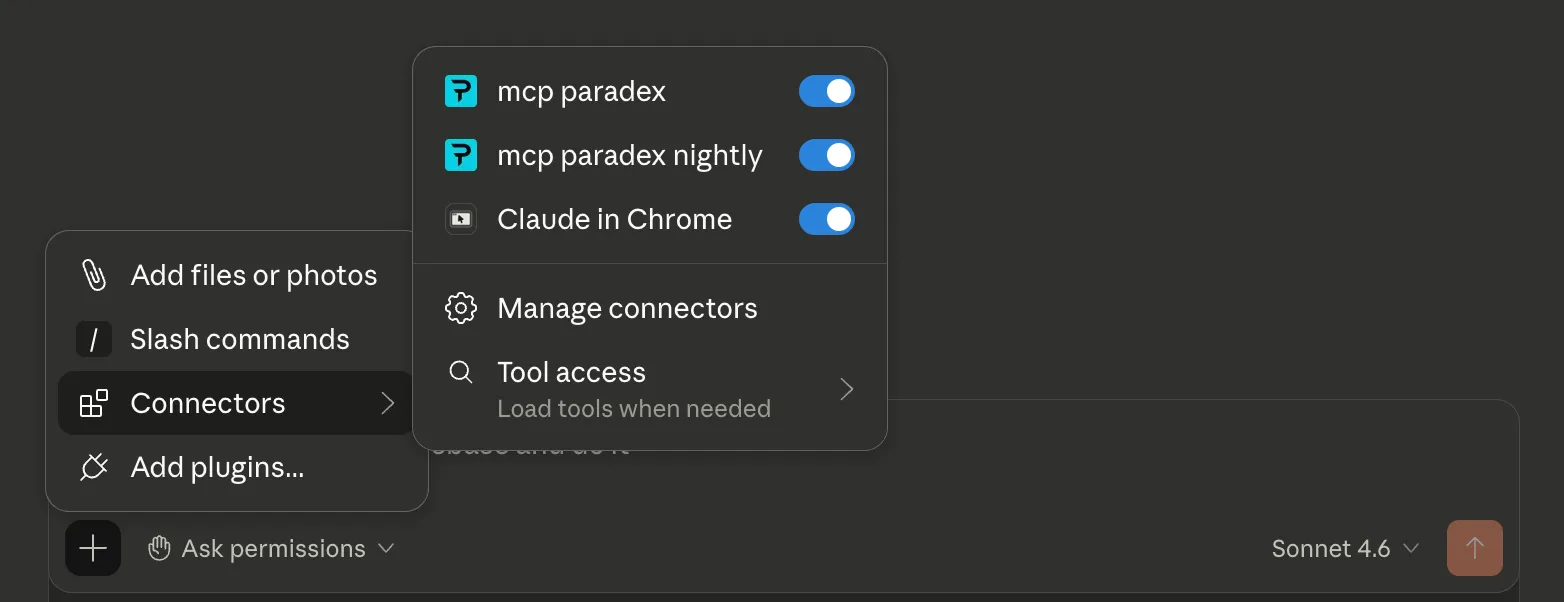
Click the + icon in the bottom-left of the chat input → Connectors. You should see mcp paradex listed with its toggle enabled.

Claude Desktop Connectors panel showing mcp paradex enabled
5

Verify it’s working

Ask your AI assistant:

“What markets are available on Paradex?”

If you get a list of trading pairs, you’re connected.

To test trading access, ask:

“Show me my Paradex account summary.”